Kernel Execution
Run custom Python code in isolated Docker containers with full access to your flow's data.
Not in Flowfile Lite
Kernel execution requires Docker and the full desktop/server build. The browser-only Flowfile Lite edition cannot run kernels — use the Polars Code node for in-browser Python/Polars logic.
Requires Docker
Kernel execution runs your Python in Docker containers, so Docker must be available on the host. A few current limitations apply.
Kernels provide a sandboxed execution environment for Python Script nodes. Each kernel runs inside its own Docker container with configurable resources (CPU, memory, GPU), persistent namespaces across executions, and access to the flowfile_ctx API for reading inputs, writing outputs, and managing artifacts.
The old flowfile global was removed
The kernel-context global was previously called flowfile. It was renamed to flowfile_ctx to avoid colliding with the flowfile PyPI package, which you may want to import inside a cell. As of kernel image 0.6.0, the kernel no longer defines flowfile; references to it without an import or assignment raise NameError. Update kernel-context calls in saved cells and node code to use flowfile_ctx.. Calls to the imported flowfile package remain unchanged.
Prerequisites
- Docker must be installed and running on the host machine
- A kernel image must be installed — the Kernel Manager lists the standard images and pulls them for you with one click (see Kernel images); no manual build needed
Desktop App
When running Flowfile as a desktop application, Docker must be available on your local machine. Verify with docker info.
Kernel Manager
The Kernel Manager is the central dashboard for creating, starting, stopping, and monitoring kernels. Open it from Settings → Execution → Python Kernels (the gear icon in the left sidebar).
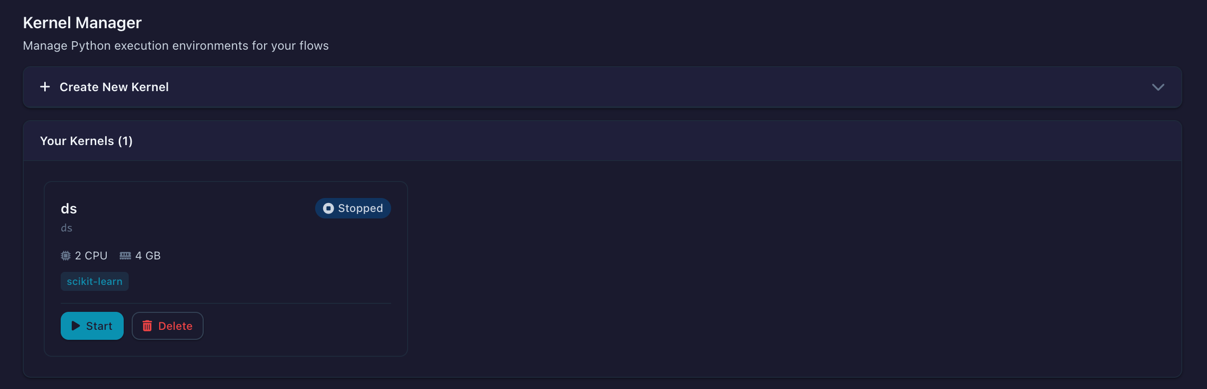
The Kernel Manager showing configured kernels with status, resource usage, and actions
When Docker is not running or no kernel image is installed, a status banner appears at the top of the page with instructions on how to resolve the issue.

Warning banner shown when Docker is unavailable or the kernel image is missing
Kernel images
Every kernel is created from an image flavour that decides which packages are pre-installed. The Kernel Manager's images panel lists the standard flavours and installs (pulls) them on demand:
| Flavour | Ships | Use for |
|---|---|---|
| Base | Polars, PyArrow, NumPy | Plain data work |
| ML | Base + scikit-learn, XGBoost, LightGBM, statsmodels | Machine-learning nodes and scripts |
| Lite | Same packages as Base, but only Polars and the kernel runtime are version-pinned | Installing large extra libraries whose own dependency trees need room to resolve |
| Custom image | Whatever you put in it | Your own published Docker image URI |
A kernel's flavour matters beyond notebooks: a kernel-environment custom node declares the packages it needs, and those are not installed automatically — the node must run on a kernel whose image provides them. Flowfile does compare the two for you: the node's kernel picker marks kernels that have all the declared packages, offers Add missing packages on a near-miss (the kernel is stopped, rebuilt with the additions, and started again), and Create kernel for this node pre-fills a new kernel from the node's requirements. For scikit-learn and friends, that means an ML kernel (or a kernel with the package added — see below).
Creating a Kernel
- In the Kernel Manager, click Create new kernel to expand the creation form
- Fill in the configuration fields:
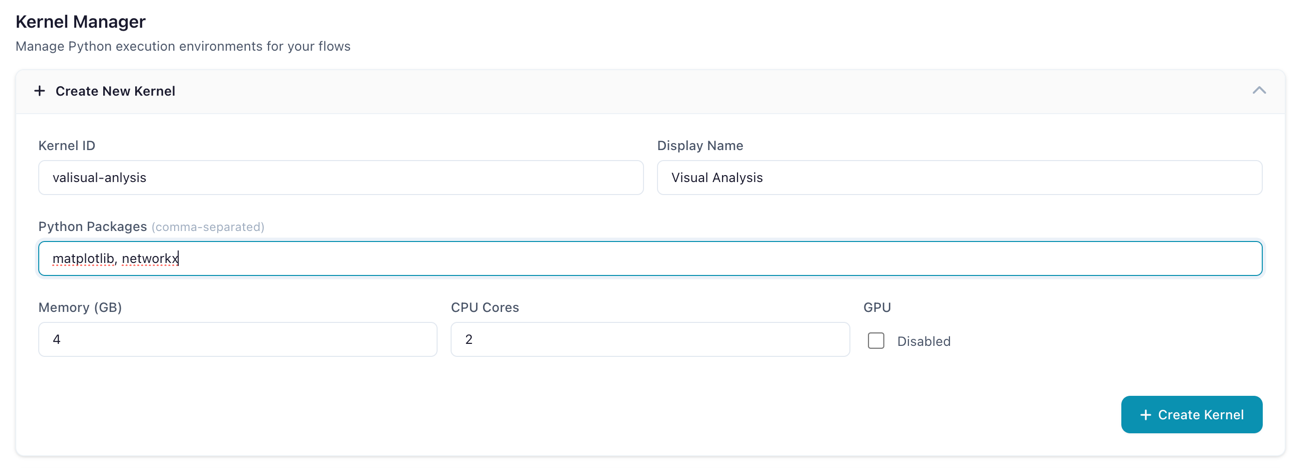
The kernel creation form with resource configuration options
| Setting | Description | Default |
|---|---|---|
| Kernel ID | Unique identifier (alphanumeric) | — |
| Name | A human-readable display label | — |
| Image flavour | Base, ML, Lite, or a custom image URI (see Kernel images) | Base |
| Packages | Extra pip packages baked into the kernel's image on top of the flavour (version pins encouraged) | (none) |
| Memory (GB) | Maximum memory the container can use (0.5–64 GB) | 4 |
| CPU Cores | Number of CPU cores allocated (0.5–32) | 2 |
| GPU | Enable GPU passthrough (requires NVIDIA Docker) | false |
- Click Create Kernel to save the configuration
- Click Start on the kernel card to launch the container
Extra packages are resolved against the flavour's version constraints and baked into a per-kernel image when the kernel is created — not installed on every start. Editing a stopped kernel's package list rebuilds its image.
Kernel Cards
Each kernel is displayed as a card showing its current state, resource allocation, and live memory usage.
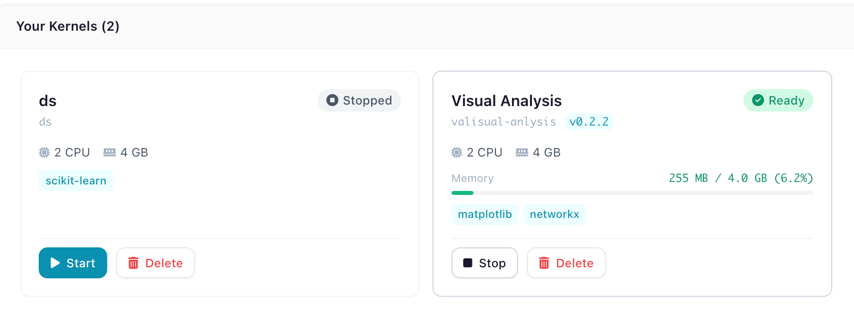
A kernel card showing status badge, CPU/memory allocation, installed packages, and memory usage bar
The status badge indicates the kernel's current state:
| Status | Badge | Meaning |
|---|---|---|
| Stopped | Gray | Container is not running |
| Starting | Blue (animated) | Container is initializing |
| Ready | Green | Idle and ready for execution |
| Executing | Orange (animated) | Currently running code |
| Error | Red | Failed — check error message on the card |
The memory usage bar shows real-time consumption, color-coded green (normal), orange (warning, >80%), or red (critical, >95%).
Python Script Node
Add a Python Script node to your flow to write and execute Python code in a kernel.
Selecting a Kernel
In the node settings panel, the kernel dropdown shows all available kernels with their current state.
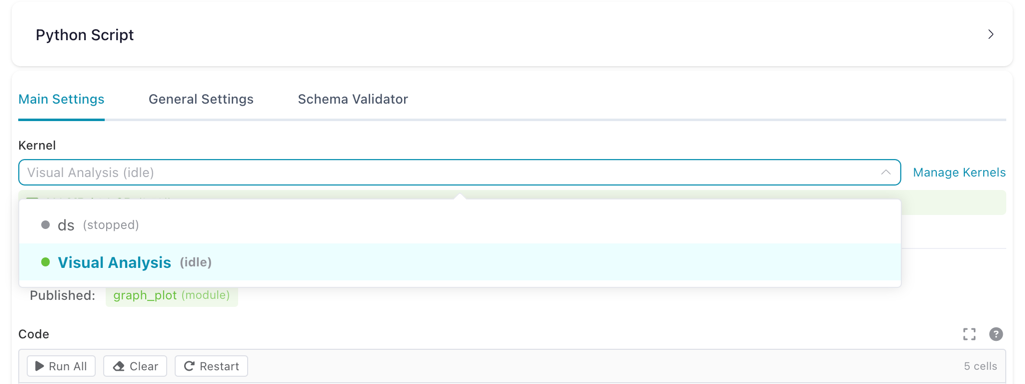
Kernel dropdown in the Python Script node settings, showing available kernels and their state
Kernel Required
A running kernel is required to execute Python code. If no kernel is selected or the selected kernel is stopped, a warning message appears with instructions.
Notebook Editor
The code editor uses a Jupyter-style notebook interface with multiple cells. Each cell can be executed independently.
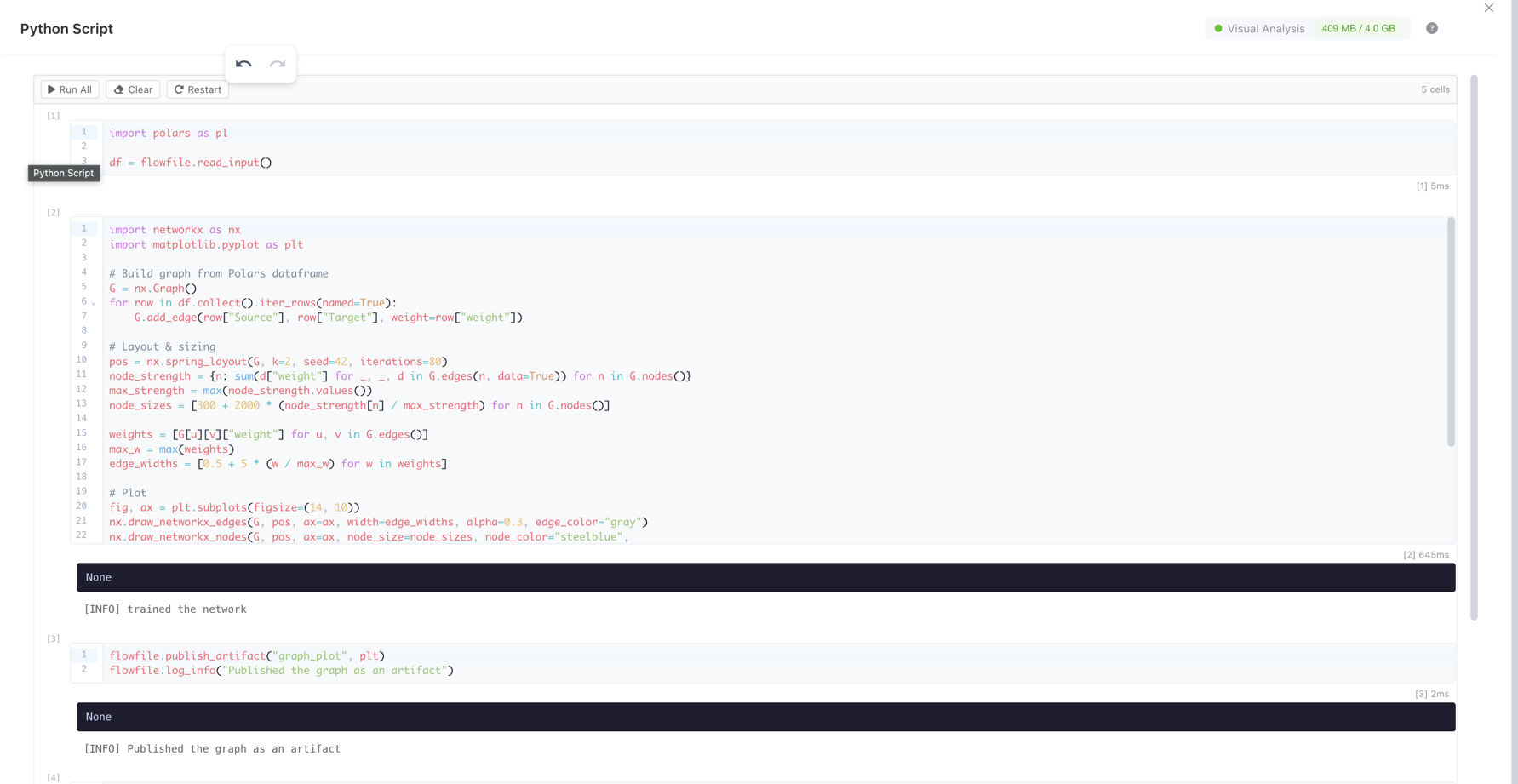
The notebook editor showing multiple code cells with execution counters, a toolbar, and output
Toolbar actions:
| Button | Description |
|---|---|
| Run All | Execute all cells in order |
| Clear | Erase all cell outputs |
| Reset session | Clear this flow's kernel variables; the kernel keeps running |
| Undo / Redo | Revert or replay a cell insert, delete or move (code edits still use Cmd/Ctrl+Z) |
Cell actions (visible on hover):
| Action | Shortcut | Description |
|---|---|---|
| Run and advance | Shift+Enter |
Execute and move to the next cell, adding a blank cell after the last one |
| Run cell | Cmd/Ctrl+Enter |
Execute the cell in place |
| Drag handle | Alt+↑ / Alt+↓ |
Drag to reorder, or move with the keyboard while the handle is focused |
| Move up/down | — | Reorder cells |
| Insert above | — | Add a cell before this one, via the ⋯ menu |
| Insert below | — | Add a cell after this one, via the ⋯ menu |
| Duplicate | — | Copy the cell below itself — the code, not the output |
| Collapse code | — | Hide the code without losing it; session-only, never saved |
| Collapse output | — | Hide the result without clearing it; session-only, never saved |
| Delete | — | Remove the cell |
Opening a quote where a column name belongs (df.select(", pl.col(", df[") lists that frame's columns as dtype · source, and when the frame cannot be worked out the node's own input columns are offered instead, each row labelled with the input it came from.
Cell Output
After executing a cell, the output area shows results, stdout, and any errors.
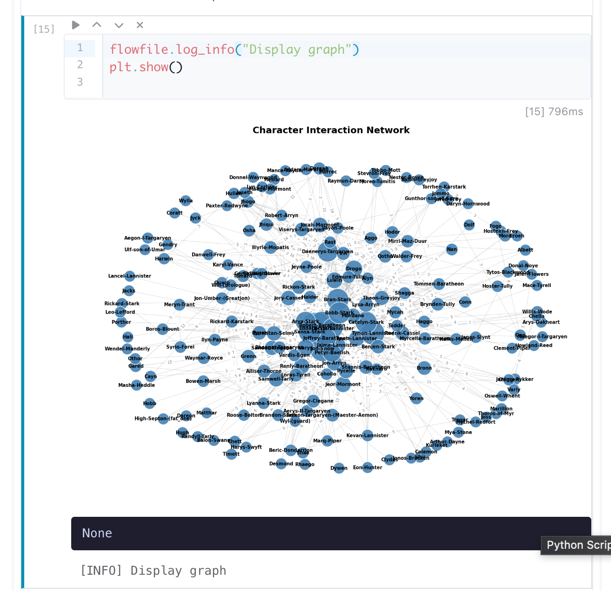
Cell output showing a rendered matplotlib chart, execution time, and stdout
Output types rendered:
- Tables — Polars DataFrames/LazyFrames as interactive sortable tables, with Copy and Download CSV (limits)
- Charts — matplotlib and plotly figures rendered inline
- Images — PIL images displayed as PNG
- HTML — rendered in a sandboxed iframe
- Text — plain text from
print()statements orflowfile_ctx.display() - Errors — tracebacks displayed in a red block
An output that is no longer current is labelled rather than removed: Code changed — rerun once you edit the cell, Earlier cells changed — rerun when a cell above it was edited, moved or run again, and Previous session when the result predates the kernel session you are in now — rerun the cell to refresh it.
Expanded Editor
Click Expand Editor to open a fullscreen code editing view. The expanded editor shows the kernel status and memory usage in the header bar.
Artifacts Panel
The node settings panel shows artifacts available from upstream nodes and artifacts published by the current node.
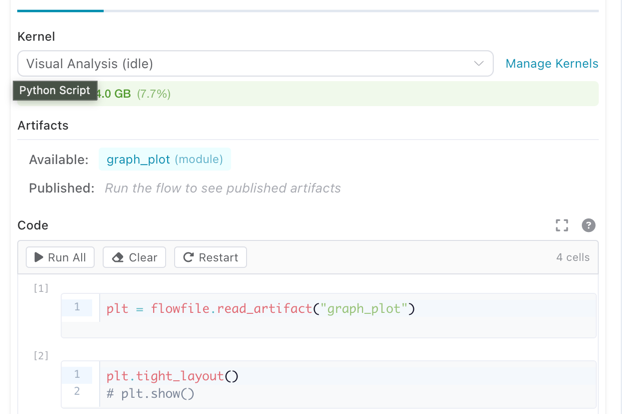
Artifacts panel showing available upstream artifacts and published artifacts for the current node
API Reference
Click the ? button in the code editor header to open the built-in API reference. The full flowfile_ctx surface — reading inputs, publishing outputs, display, logging, artifacts, catalog tables, and shared files — is documented on The flowfile_ctx API.
Writing code: the flowfile_ctx API
Inside a Python Script node connected to a kernel, you write standard Python code. The flowfile_ctx object is available automatically — no imports needed — and it is your handle for reading the node's inputs, publishing its outputs, displaying rich results, logging, and working with artifacts and catalog tables.
The same object powers catalog notebook cells, so it is documented once on its own page: The flowfile_ctx API. The Reading Input Data and Writing Output Data sections cover the node-specific input/output edges.
Using Kernels in the Node Designer
Custom nodes built with the Node Designer can also run on kernels. This lets you create reusable nodes that depend on third-party libraries (e.g. scikit-learn, XGBoost) or that need artifact support.
Enabling Kernel Mode
In the Node Designer's Execution group, choose the Isolated kernel card. A Dependencies (pip) editor records the packages the node needs — a requirement to satisfy, not an install step, so run and test the node on a kernel whose image provides them (for ML libraries, the ML flavour). See Execution environment for the full picture.
When a user drops your kernel-enabled custom node into a flow, the node settings drawer shows a kernel picker, with the node's dependencies listed beside it, so they can choose which kernel runs it.
What Changes
Your process method code stays the same — the self.settings_schema access pattern works identically. Behind the scenes, the Node Designer generates a self-contained kernel script that:
- Creates proxy classes replicating
self.settings_schema.section.component.value - Reads inputs via
flowfile_ctx.read_input() - Runs your process method body
- Publishes outputs via
flowfile_ctx.publish_output()for each named output
The full flowfile_ctx API (artifacts, display, logging) is available inside kernel-enabled custom nodes.
For details on building custom nodes, see Node Designer, and for a full worked example — the same node built visually and as code — see K-Means on a Kernel.
Current limitations
- Flow-to-code export — Python Script nodes that use kernel execution are not included in the Export to Python code generator. Kernel nodes are skipped in the generated code.
- Artifact state visibility — There is no UI to browse or inspect the contents of stored artifacts. You can list artifacts via
flowfile_ctx.list_artifacts()in code, but there is no visual artifact explorer.
Related Documentation
- The flowfile_ctx API — The cell-side API for inputs, outputs, display, artifacts, and catalog tables
- Node Designer — Create custom nodes with kernel support
- Building Flows — Using nodes in workflows
- Transform Nodes — Built-in transformation nodes
- Docker Deployment — Running Flowfile with Docker
- Kernel Architecture — Technical deep-dive for developers