Building Flows
This page covers the canvas mechanics: creating a flow, adding and connecting nodes, running, and saving. For a complete worked pipeline, follow the Quickstart — or open the finished sales pipeline in your browser, no install needed.
The interface
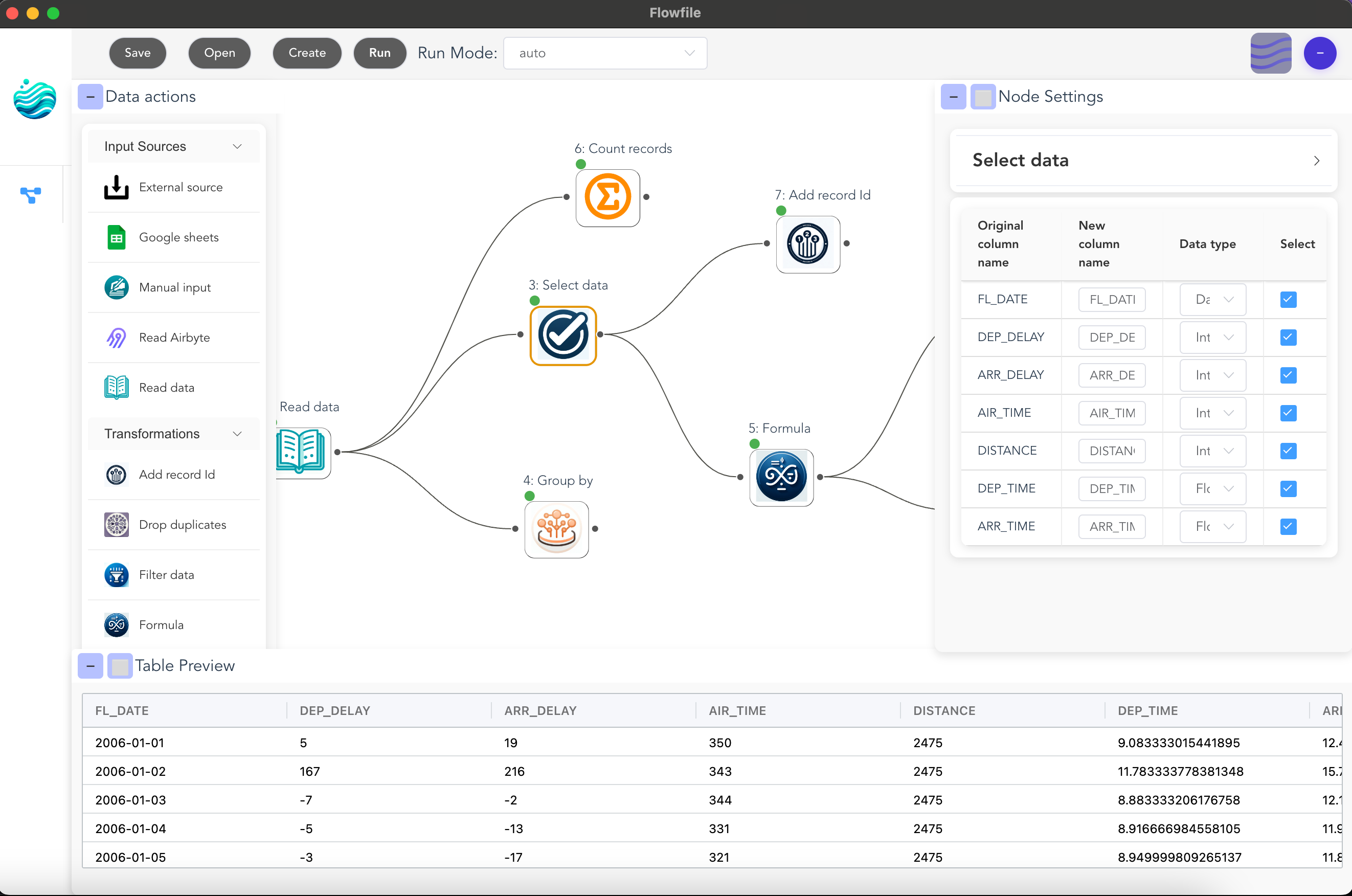
- Left sidebar — the node palette, grouped into six categories (full reference)
- Center canvas — the flow itself
- Right sidebar — settings for the selected node
- Bottom panel — data preview for the selected node
| Canvas control | Action |
|---|---|
| Mouse wheel | Zoom |
| Drag empty canvas | Pan |
| Shift + drag | Select multiple nodes |
| Right-click | Context menu; add notes to the canvas |
Create a flow
- Click Create in the top toolbar and name the flow.
- An empty canvas opens.
- Save writes it as a
.yamlfile (.jsonalso supported) — plain text that diffs and versions cleanly in Git. Legacy.flowfilefiles still open; re-save to convert.
Add and connect nodes
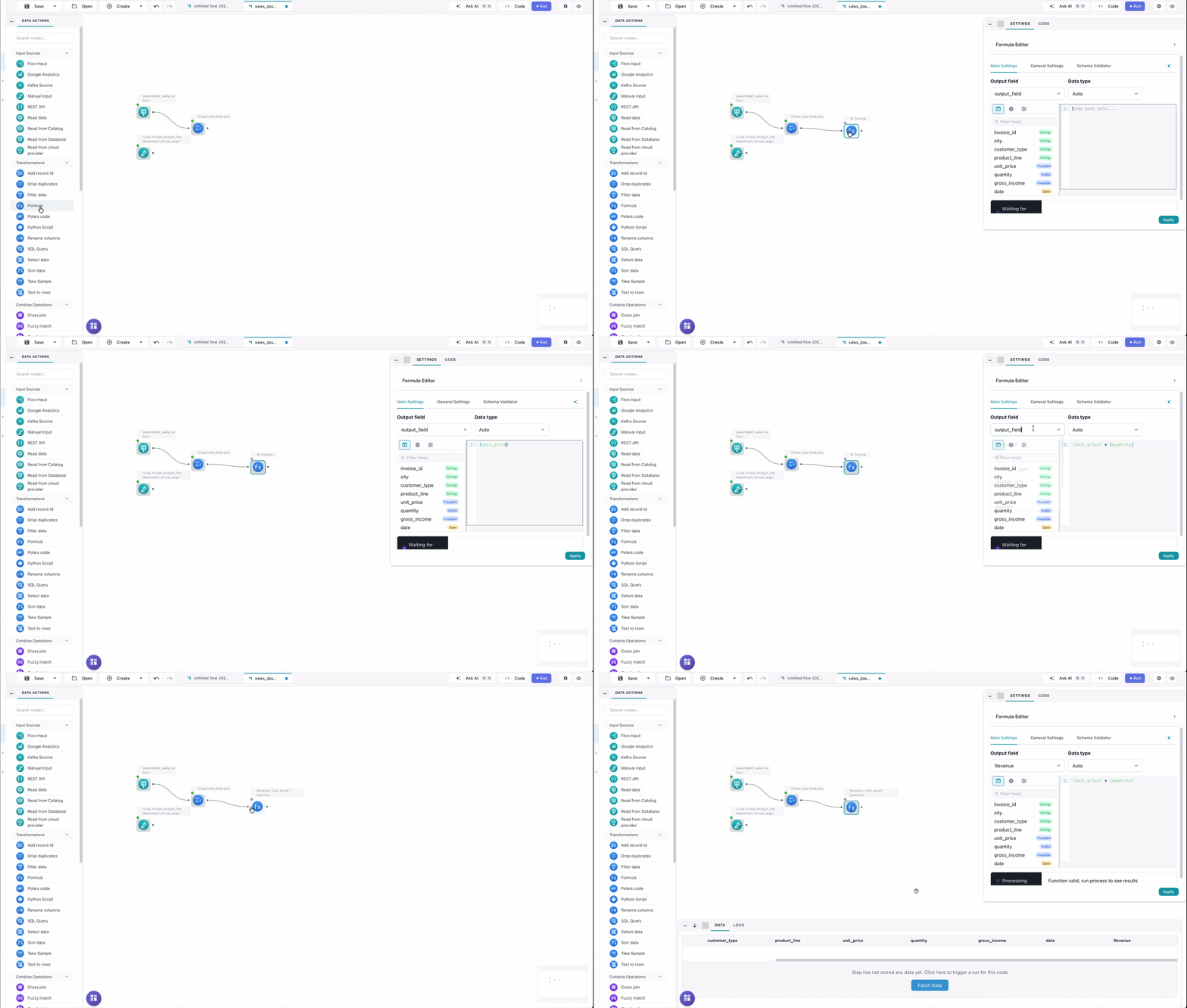
- Drag a node from the left sidebar onto the canvas.
- Drag from a node's output handle to the next node's input to connect them.
- Click a node to configure it in the right sidebar — alongside each node's own settings there is a shared General Settings tab with the node's description, its reference name (used for edge labels, see below), and a toggle to cache its result between runs. Clicking the canvas or another node, or minimizing the panel, saves it first; if the settings cannot be saved, the panel stays open with a warning, and clicking away again discards the unsaved changes.
Run
- Click Run in the top toolbar. An open settings panel is saved first; if its settings cannot be saved, the flow does not start and a notification says so.
- Node borders show execution state: green success, red failure, orange warning, grey not yet executed. A hollow grey ring means the node was deliberately skipped behind a closed Gate — a successful outcome, not an error.
- Click any executed node to inspect its output in the bottom panel.
The preview's status bar has Copy and Download CSV. Copy puts the selected rows, or the node's result, on the clipboard as tab-separated text that pastes into Excel or Google Sheets; it is capped at 10,000 rows and 100,000 cells (rows × columns). Download CSV saves up to 10,000 rows; to export a full result, add a Write data node. Copying the result or downloading needs a run with the node's current settings and cannot include list or struct columns.
In Development mode (the default) every node's data is available for preview after a run. Switch to Performance mode when the flow is done: only the steps needed for outputs execute, and the query optimizer works across nodes.
Flow settings
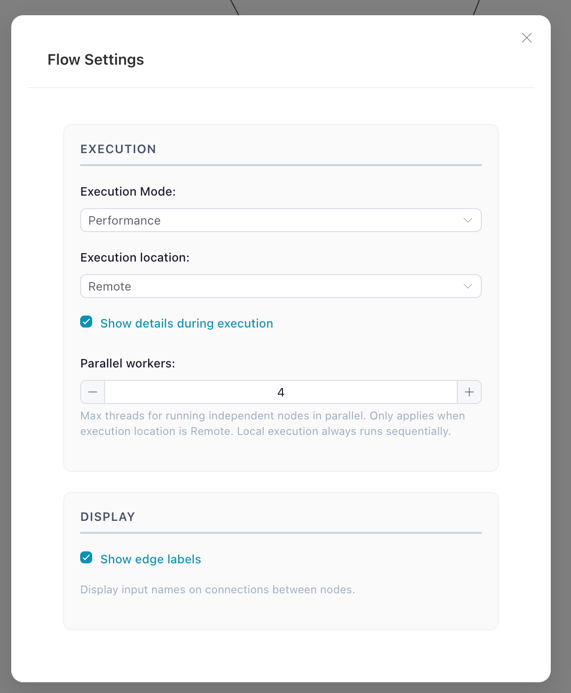
The gear icon in the top toolbar opens the flow-level settings:
| Setting | Options |
|---|---|
| Execution mode | Development (preview everything) / Performance (optimized, outputs only) |
| Execution location | Local (core process, sequential) / Remote (worker service, independent nodes run in parallel) |
| Parallel workers | 1–32, default 4 — remote execution only |
| Show detailed progress | More granular per-node status during runs |
| Show edge labels | Display each connection's name on the canvas |
| Warn about invalid node settings | Flag nodes whose settings no longer match their input, before you run |
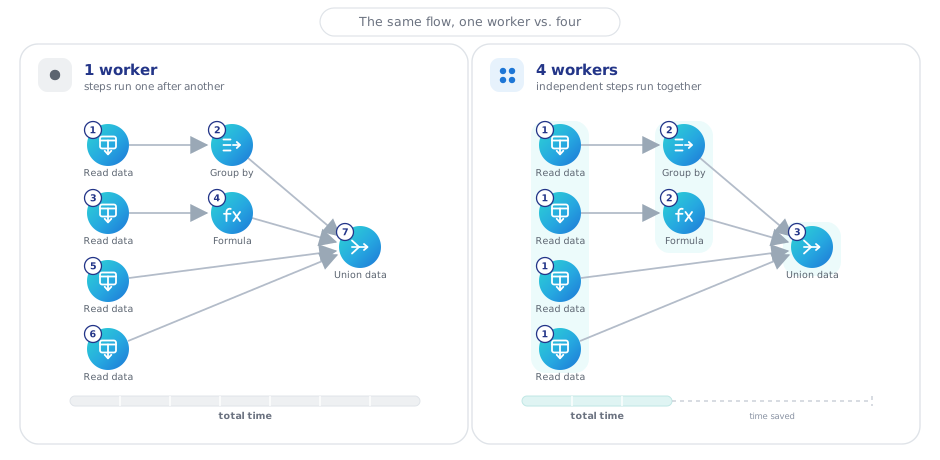
Parallel workers applies to Remote runs. The worker service runs independent steps at the same time, up to the number you set, so a flow with independent branches finishes in a few rounds instead of one step after another. At 1 — or on Local, which is always sequential — every step waits its turn.
Settings warnings
With Warn about invalid node settings on (the default), Flowfile checks each node against the columns its input will actually produce and marks the ones that no longer add up — without running the flow. Two things are flagged:
- Settings that reference a column that is gone, usually after an upstream rename or a column dropped in a Select.
- Formula and filter expressions that cannot run against the input —
[amount] + "x"on a numeric column, or an advanced filter that does not produce true or false.
An amber dot appears on the node; hover it to see what is wrong. Fix the setting and the dot clears — no run needed.
Nodes that tolerate a missing column are never flagged. Select and Dynamic rename skip a column that is no longer there and keep running, and a Join ignores unavailable entries in its column lists — only a missing join key breaks the node, so only that warns.
Silence is not a clean bill of health
The check never guesses. A node stays unmarked whenever its input schema cannot be known without running the flow — downstream of a custom node or Python Script that has to execute once first — and raw Python and SQL nodes are never checked at all. Run the flow to catch what static analysis cannot see.
Edge labels and Python Script nodes
Each connection's name comes from the source node's node reference (default df_{node_id}). With edge labels on, the canvas shows the exact name a Python Script node uses to read that input:
total_sales = flowfile_ctx.read_input("total_sales")
sales_per_city = flowfile_ctx.read_input("sales_per_city")
Python Script nodes likewise publish named outputs with flowfile_ctx.publish_output(df, "name").
From here
- Open the finished sales pipeline: in-app via Create → From template, as a download, or live in the browser.
- Worked examples — complete flows with data and expected results.
- Node reference — every node, per category.