Connections
Save and reuse database, cloud storage, and Kafka credentials across your flows.
All connection types and secrets are managed from a single Connections page, accessible via Settings → Connections → All connections in the left sidebar. Use the tabs to switch between Overview, Database, Cloud Storage, Kafka, Google Analytics, and Secrets. LLM provider keys live under Settings → AI — see Provider Setup.
Connections store your credentials securely (passwords are encrypted via Secrets) so you can reference them by name in Database Reader, Database Writer, Cloud Storage Reader, and Cloud Storage Writer nodes without re-entering credentials each time.
Not in Flowfile Lite
Saved connections require the full desktop/server build. The browser-only Flowfile Lite edition has no backend, so database, cloud storage, and Kafka connections (and the secrets that back them) are not available.
Database Connections
Supported Databases
| Database | Type Key |
|---|---|
| PostgreSQL | postgresql |
| MySQL | mysql |
| SQLite | sqlite |
| DuckDB | duckdb |
| SQL Server | mssql |
| Denodo | denodo |
File-based connections (SQLite, DuckDB)
SQLite and DuckDB connect to a local database file path (e.g. /path/to/database.db
or /path/to/analytics.duckdb) — no host, port, or credentials are required.
DuckDB single-writer files
A DuckDB file allows many concurrent readers but only one writer at a time. When a flow writes to a DuckDB file, close other tools (e.g. the DuckDB CLI or an IDE) that have the same file open.
Denodo (PostgreSQL-compatible port)
Denodo connections use Denodo's PostgreSQL-compatible interface (port 9996 by default) through the standard psycopg2 driver, so no Denodo-specific driver is needed. Point the connection at the Virtual DataPort host, use the virtual database as Database, and enable SSL when the server requires it. Reading views, running queries and browsing from the reader node are supported — virtual databases are listed as schemas and views as tables. Writing to Denodo has not been verified against a live Denodo server. Arrow Flight SQL (port 9994) for faster large extracts is planned.
DuckDB INTERVAL columns
INTERVAL columns are read as text — calendar intervals (months) have no fixed length,
so there is no matching Polars type.
Creating a Database Connection
- Open Settings → Connections → All connections from the left sidebar and select the Database tab
- Click Create New Connection
- Fill in the connection fields:
| Field | Description | Example |
|---|---|---|
| Connection Name | Unique identifier for this connection | prod_postgres |
| Database Type | PostgreSQL, MySQL, SQLite, DuckDB, SQL Server, or Denodo | postgresql |
| Host | Database server hostname | db.example.com |
| Port | Database port | 5432 |
| Database | Database name | analytics |
| Username | Database user | readonly_user |
| Password | Stored as an encrypted secret | |
| Enable SSL | Use SSL for the connection | Recommended for cloud databases |
- Click Update Connection to save
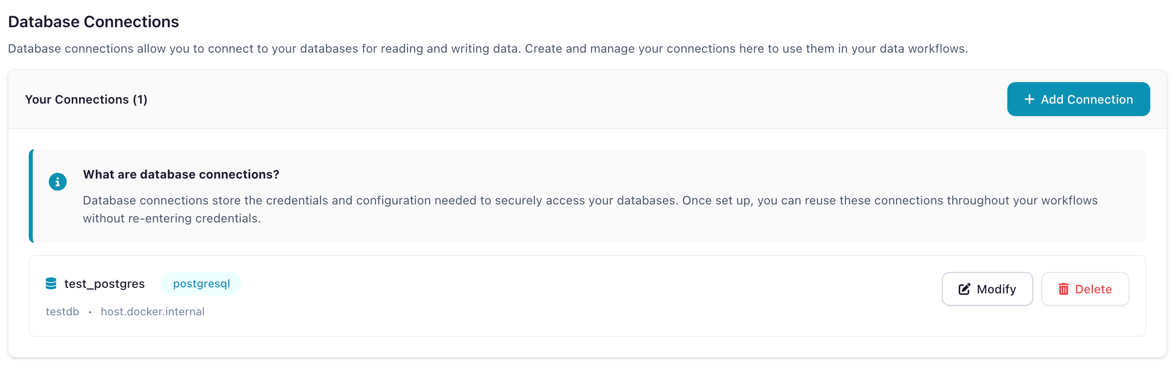
The Connections page showing the Database tab with saved connections
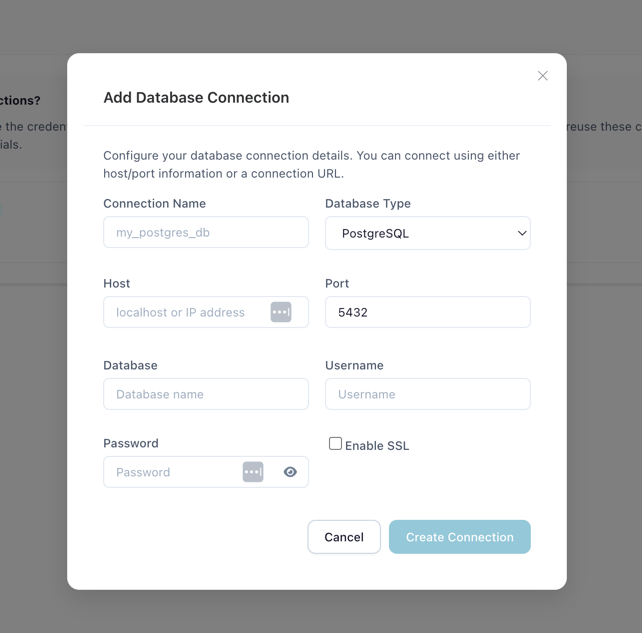
Creating a new PostgreSQL connection
Using Database Connections in Flows
In a Database Reader or Database Writer node:
- Set Connection Mode to Reference
- Select your saved connection from the dropdown
- Configure schema, table, and query settings
Reference vs Inline Mode
Reference mode uses a saved connection (recommended). Credentials are encrypted, reusable, and supported by the code generator.
Inline mode lets you enter credentials directly in the node settings. This is convenient for quick tests but credentials are not reusable and inline connections cannot be exported to Python code.
Cloud Storage Connections
Supported Providers
| Provider | Description |
|---|---|
| AWS S3 | Amazon Simple Storage Service (including S3-compatible services like MinIO) |
| Azure Data Lake Storage (ADLS) | Azure Data Lake Storage Gen2 / Blob Storage |
| Google Cloud Storage (GCS) | Google Cloud object storage buckets |
Creating a Cloud Storage Connection
- Open Settings → Connections → All connections and select the Cloud Storage tab
- Click Add Connection
- Configure the connection:
| Field | Description |
|---|---|
| Connection Name | Unique identifier (e.g., my_s3_storage) |
| Storage Type | AWS S3, Azure Data Lake Storage, or Google Cloud Storage |
| AWS Access Key ID | Your access key |
| AWS Secret Access Key | Stored as encrypted secret |
| AWS Session Token (Optional) | Access Key only: for temporary credentials; stored as encrypted secret |
| AWS Profile (Optional) | AWS CLI only: a profile from the AWS config on the machine running Flowfile; blank uses the default credentials |
| AWS Region | e.g., us-east-1 |
| Custom Endpoint URL | For S3-compatible services (MinIO, etc.), with any authentication method |
| Verify SSL | On by default; turn off only for an endpoint with a self-signed certificate (S3 and ADLS; no effect on GCS) |
| Allow HTTP (unencrypted) endpoint | Allows plain http:// endpoints (e.g., local MinIO) |
Provider-specific fields
The fields above describe an AWS S3 connection. The credential fields adapt to the selected Storage Type: Azure Data Lake Storage uses an account name with service-principal or SAS-token credentials, and Google Cloud Storage uses a project ID with a service-account key.
- Click Create Connection
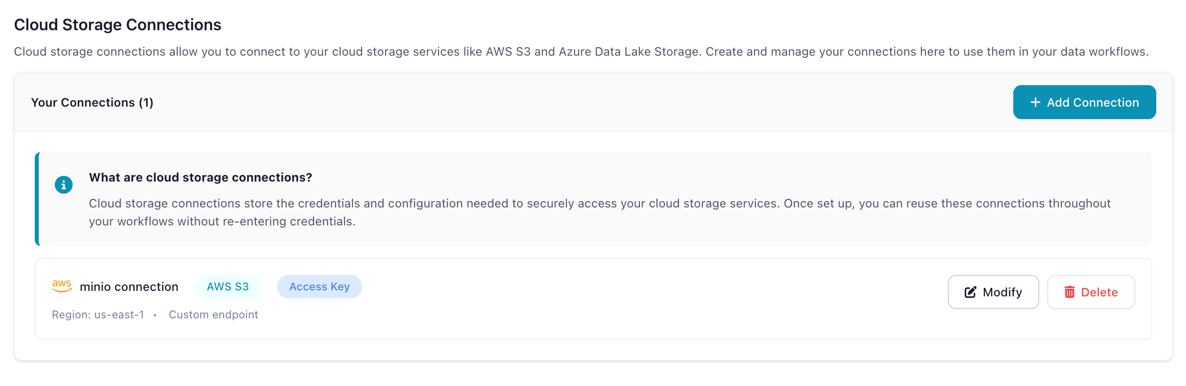
The Connections page showing the Cloud Storage tab
Using Cloud Connections in Flows
In a Cloud Storage Reader or Cloud Storage Writer node, select your saved connection from the dropdown. No connection uses the credentials of the machine running Flowfile instead, and is unavailable on a multi-user server; see Running a node without a connection.
For a step-by-step tutorial, see Manage Cloud Storage.
Kafka Connections
Creating a Kafka Connection
- Open Settings → Connections → All connections and select the Kafka tab
- Click Add Connection
- Configure the connection:
| Field | Description |
|---|---|
| Connection Name | Unique identifier (e.g., prod_kafka) |
| Bootstrap Servers | Comma-separated list of broker addresses (e.g., broker1:9092,broker2:9092) |
| Security Protocol | PLAINTEXT, SSL, SASL_PLAINTEXT, or SASL_SSL |
| SASL Mechanism | PLAIN, SCRAM-SHA-256, or SCRAM-SHA-512 (when using SASL) |
| SASL Username / Password | Credentials for SASL authentication |
| SSL CA Certificate | CA certificate for SSL connections |
| SSL Certificate / Key | Client certificate and key for mutual TLS |
| Schema Registry URL | URL of the Confluent Schema Registry (optional) |
- Click Create Connection
Using Kafka Connections in Flows
Select your saved Kafka connection when configuring the Kafka Source node. Kafka support is read-only — there is no Kafka writer node. See Kafka for the node's settings and a runnable example.
Security
- Passwords and secret keys are stored as encrypted Secrets using Fernet encryption
- Connection metadata (host, port, database name) is stored in the local database
- Credentials are decrypted only at runtime when a flow executes
- Each user's connections are isolated (Docker multi-user mode)
Related Documentation
- Secrets — How credential encryption works
- Input Nodes: Database Reader — Reading from databases
- Output Nodes: Database Writer — Writing to databases
- Tutorial: Connect to PostgreSQL
- Tutorial: Manage Cloud Storage