Schedules
Automate flow execution with schedules — run flows on a timer or trigger them when catalog tables are refreshed.
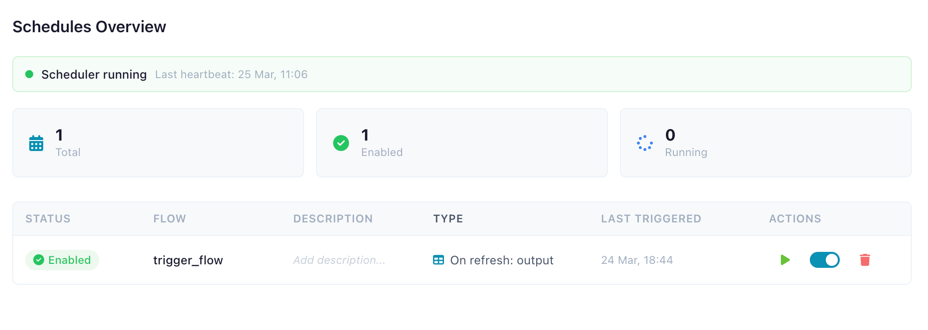
The Schedules tab with scheduler status, summary cards, and schedule list
Overview
The scheduling system allows you to automate registered flows without manual intervention. Schedules are managed from the Schedules tab in the Catalog, or from individual flow detail panels.
Three schedule types are supported:
| Type | Description |
|---|---|
| Interval | Run a flow every N minutes (minimum 1 minute) |
| Table Trigger | Run a flow when a specific catalog table is refreshed |
| Table Set Trigger | Run a flow when all tables in a set have been refreshed |
Scheduler must be running
Schedules are only active while the scheduler process is running. See Scheduler Status for details on how the scheduler operates.
Schedules Tab
Click the Schedules tab in the Catalog to see the schedule overview. The tab shows:
- Scheduler status bar — indicates whether the scheduler is running
- Summary cards — total schedules, enabled count, and currently running count
- Schedule list — all configured schedules with status, flow name, type, last triggered time, and actions
Creating a Schedule
- Click Create Schedule from the Schedules tab, or click Add in a flow's Schedules section
- Select a flow from the dropdown (only flows with existing files are shown)
- Optionally add a description (e.g., "Nightly sales data refresh")
- Choose a schedule type:
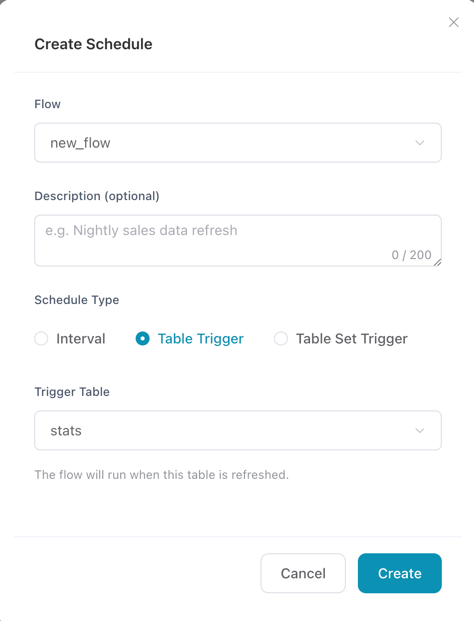
The Create Schedule modal with flow selection and schedule type configuration
Interval Schedule
Set how often the flow should run:
- Enter the interval in minutes (minimum 1 minute)
- The scheduler checks for due interval schedules every polling cycle (default: 30 seconds)
- A flow will not be triggered again if it already has an active run
Table Trigger
Run a flow automatically when a catalog table is updated:
- Select a trigger table from the dropdown
- Tables read by the selected flow are shown first for convenience
- The flow runs each time the trigger table's data is overwritten via a Catalog Writer node
Table Set Trigger
Run a flow when all tables in a set have been refreshed:
- Select at least 2 tables from the dropdown
- The flow only runs once all selected tables have been updated since the last trigger
- Useful for flows that depend on multiple upstream data sources
Managing Schedules
Each schedule in the list provides inline actions:
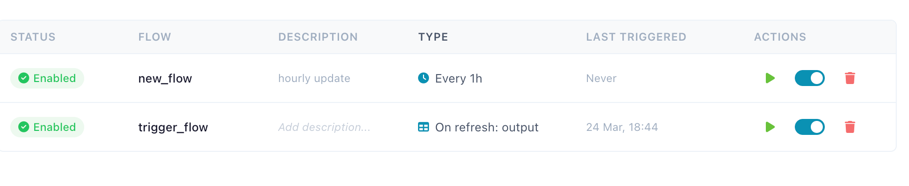
Schedule actions: run now, enable/disable toggle, and delete
| Action | Description |
|---|---|
| Run Now | Trigger the flow immediately, regardless of the schedule timer |
| Enable / Disable | Toggle the schedule on or off without deleting it |
| Edit Description | Click the description text to edit it inline |
| Delete | Remove the schedule (with confirmation dialog) |
| Cancel Run | Stop a currently running flow (sends SIGTERM to the process) |
One active run per flow
A flow can only have one active run at a time. If a flow is already running, new triggers (both scheduled and manual) are skipped until the current run completes.
Flow Detail Panel
Schedules for a specific flow are also shown in the flow detail panel within the Catalog:
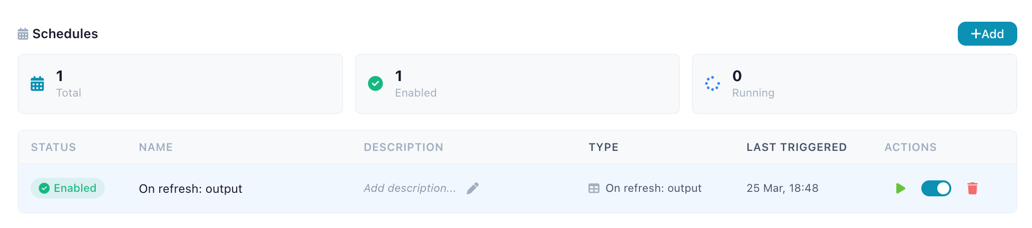
Schedules section in the flow detail panel
The flow detail panel includes:
- Run Flow button — trigger the flow immediately without needing a schedule
- Cancel Run button — stop a running flow
- Schedules section with summary cards (total, enabled, running) and the same management actions
Run Logs
Scheduled and manual runs write their output to log files. When viewing a run's detail panel, click View log to see the full execution log. Logs are stored at ~/.flowfile/logs/scheduled_run_{run_id}.log.
Scheduler Status
The scheduler status bar at the top of the Schedules tab shows whether the scheduler is active:
Scheduler status bar — green when running, orange when stopped
| State | Indicator | Description |
|---|---|---|
| Running | Green dot | The scheduler is actively polling for due schedules |
| Not running | Orange dot | No scheduler is active; schedules will not fire |
Embedded Mode (Desktop / Python)
When running Flowfile as a desktop app or via pip install flowfile, the scheduler runs inside the Flowfile process:
- Start/stop the scheduler from the Schedules tab using the Start / Stop buttons
- Schedules are only active while Flowfile is running
Standalone Mode
Run the scheduler as an independent background service:
pip install flowfile
flowfile run flowfile_scheduler
In standalone mode:
- The scheduler runs independently and survives UI restarts
- The Schedules tab shows "running as a standalone service" with no start/stop controls
- Only one scheduler instance can be active at a time (enforced via an advisory database lock)
- If a scheduler stops unexpectedly, another instance can take over after 90 seconds
Docker Mode
In Docker deployments, set the FLOWFILE_SCHEDULER_ENABLED environment variable to auto-start the scheduler:
environment:
  - FLOWFILE_SCHEDULER_ENABLED=true
See Docker Reference for full configuration.
Related Documentation
- Catalog — Managing flows, tables, and run history
- Output Nodes — Writing data to catalog tables (triggers table-based schedules)
- Docker Reference — Docker deployment with scheduler enabled