Catalog
Organize, track, and govern your data flows and tables in a central catalog.
The Catalog provides a namespace hierarchy for managing flows, tracking run history, registering data tables, and sharing artifacts across flows.
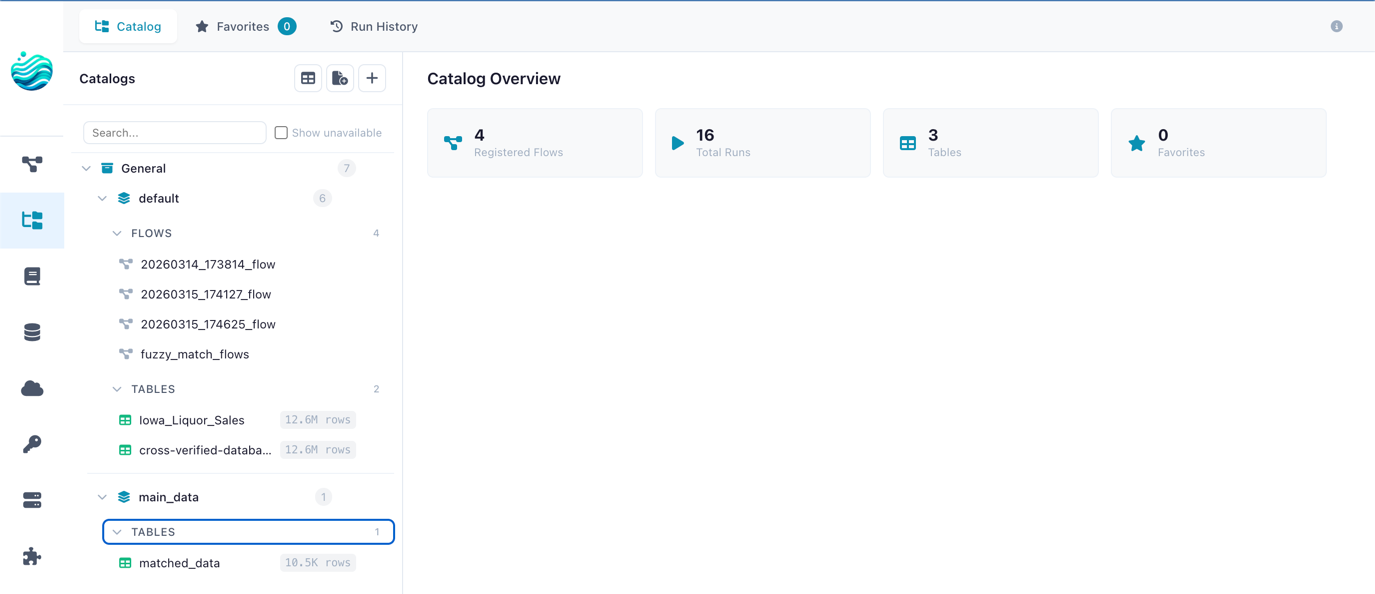
The Catalog page with namespace tree, tabs, and dashboard statistics
Opening the Catalog
Click the Catalog icon in the left sidebar menu to open the Catalog page.
Dashboard
When no item is selected, the Catalog shows an overview dashboard with:
| Metric | Description |
|---|---|
| Registered Flows | Flows tracked in the catalog |
| Total Runs | Number of flow executions recorded |
| Tables | Materialized data tables |
| Favorites | Your bookmarked flows |
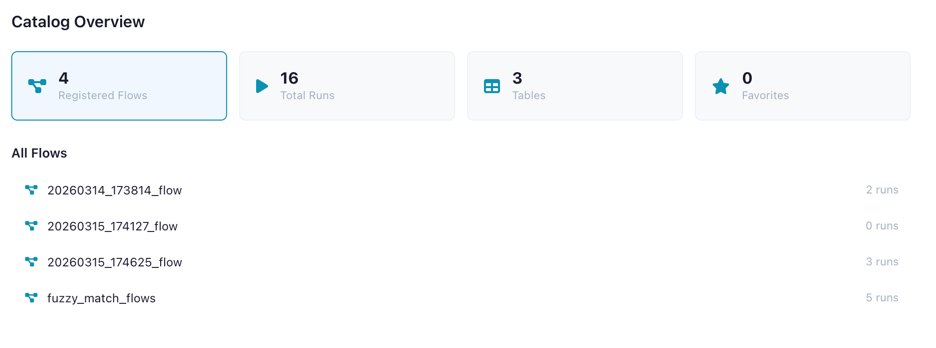
Dashboard showing overview metrics
Namespaces
Namespaces organize your catalog into a two-level hierarchy:
- Catalog (level 0) — Top-level container (e.g.,
production,development) - Schema (level 1) — Sub-container within a catalog (e.g.,
sales,analytics)
Flows, tables, and artifacts are always registered under a schema.
Creating a Namespace
- Click the + button next to "Catalog" in the tree sidebar
- Choose whether to create a Catalog (top-level) or Schema (under an existing catalog)
- Enter a name and optional description
- Click Create
A default catalog and schema are created automatically on first use.
Tabs
The sidebar offers four tabs:
| Tab | Description |
|---|---|
| Catalog | Browse the namespace tree with flows, tables, and artifacts |
| Favorites | Your starred flows for quick access |
| Run History | Chronological list of all flow executions |
Registering Flows
Register a flow to enable run tracking, artifact lineage, and catalog table production.
- Navigate to the desired schema in the tree
- Click Register Flow
- Select the flow file (
.yaml) from the file browser - Enter a name and optional description
- Click Register
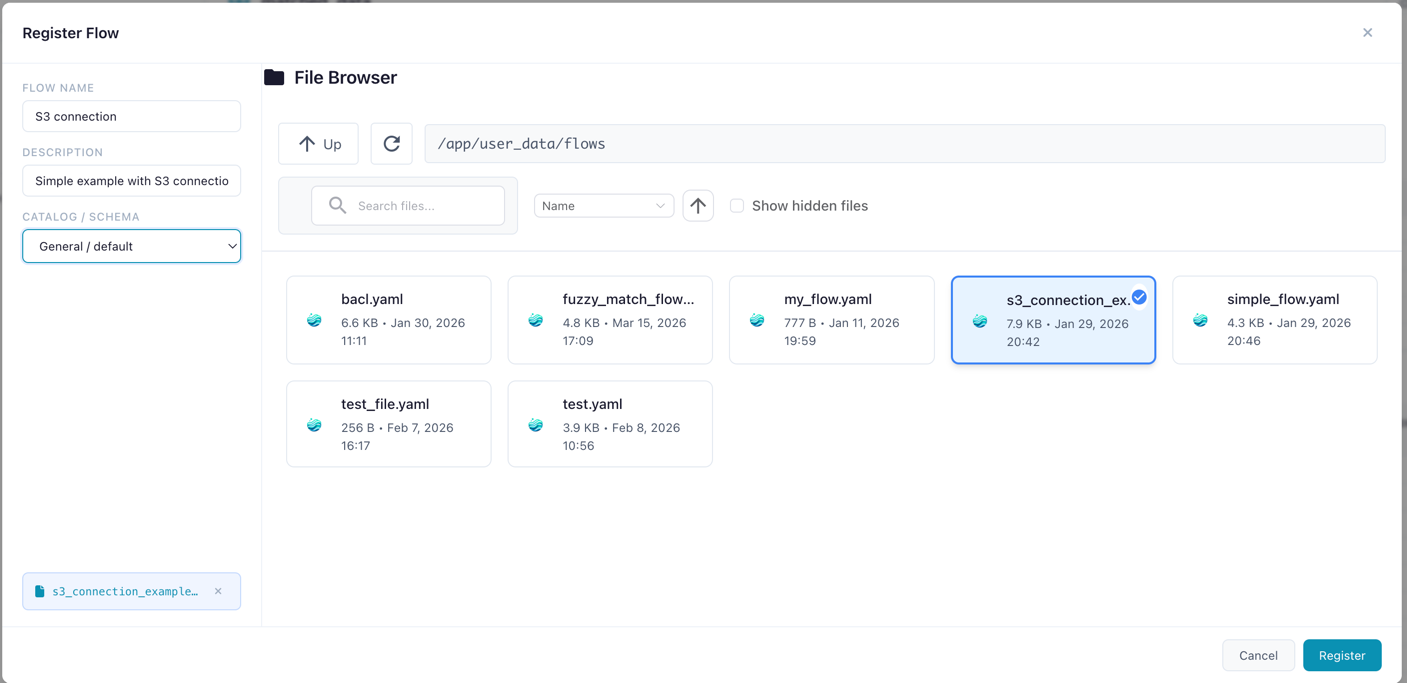
Registering a flow file under a catalog schema
Flow Detail Panel
Click a registered flow to see its detail panel:
- Name (editable inline) and description
- Metrics: total runs, success rate, last run time, artifact count
- Actions: Open in Designer, Favorite, Delete
- Recent Runs table with status and duration
- Produced Artifacts list
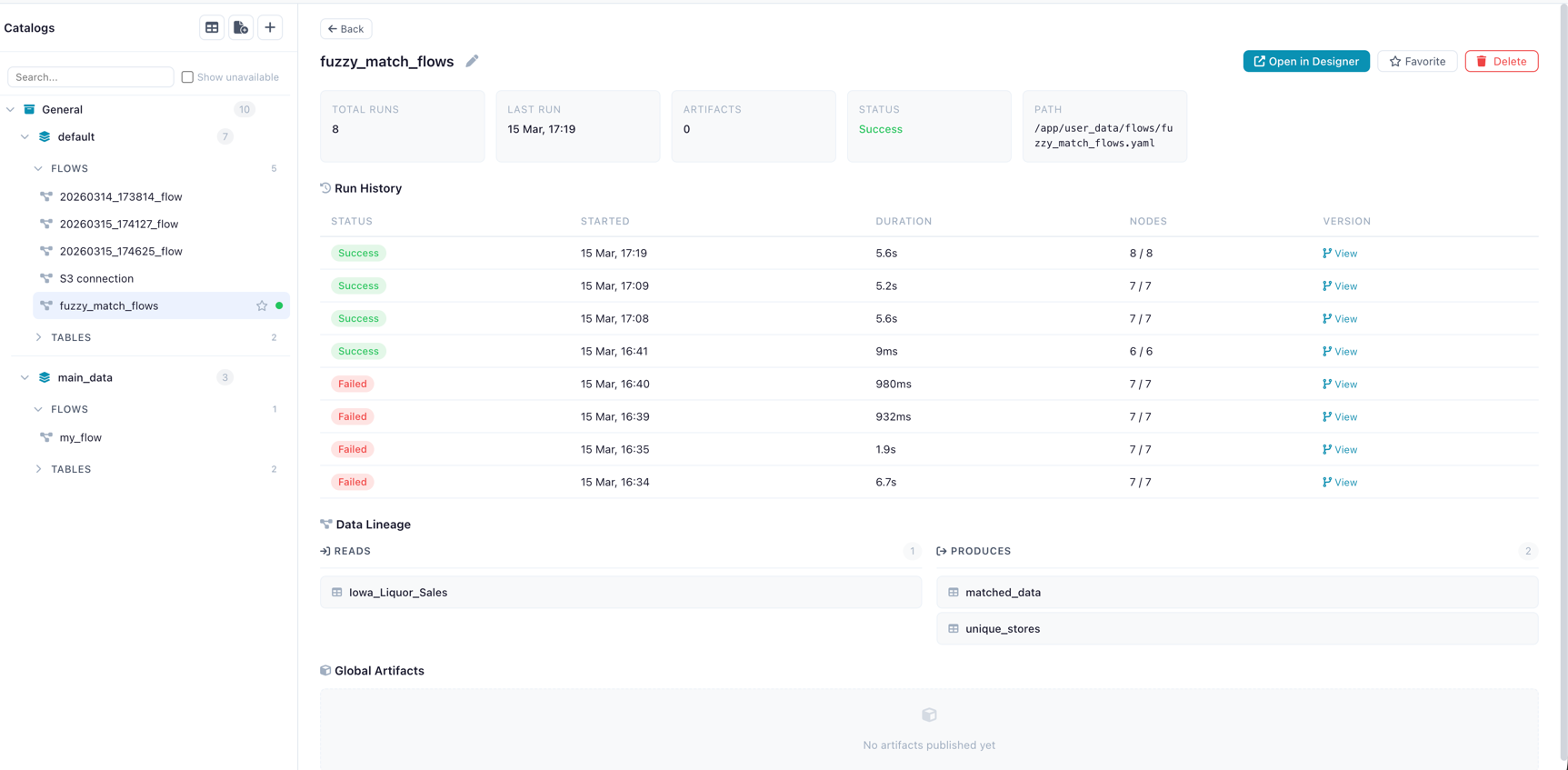
Flow detail panel showing metrics, recent runs, and actions
Missing Flow File
If the flow's .yaml file has been moved or deleted, a warning banner appears.
The flow metadata and run history are preserved, but the flow cannot be opened in the designer.
Run History
Every execution of a registered flow is recorded with:
| Field | Description |
|---|---|
| Status | Success or failure (with error details) |
| Started / Ended | Timestamps |
| Duration | Execution time in seconds |
| Nodes Completed | Progress (completed / total) |
| Run Type | How the flow was triggered |
| Flow Snapshot | YAML snapshot of the flow version at run time |
Run Detail Panel
Click a run to see its full detail:
- Status badge and metadata
- Node Results table: each node's status, duration, and error messages
- Flow Snapshot: the exact flow version that was executed
- Open Snapshot in Designer button to recreate the flow as it was
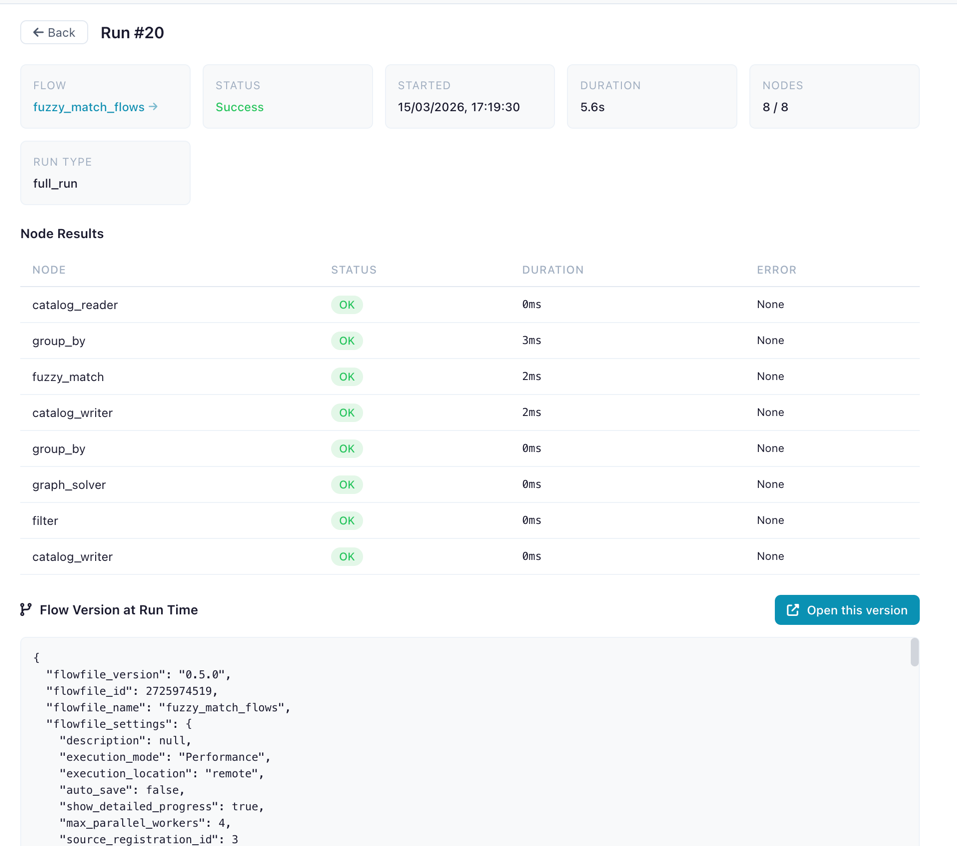
Run detail showing node results and snapshot
Catalog Tables
Register materialized data tables in the catalog for reuse across flows.
Recommended: Register tables via a flow
It is recommended to register tables via a flow, as it supports more source types and ensures the table is interpreted exactly how you want it.
Registering a Table
- Navigate to a schema in the tree
- Click Register Table
- Select a Parquet file (
.parquet) - Enter a name
- Click Register
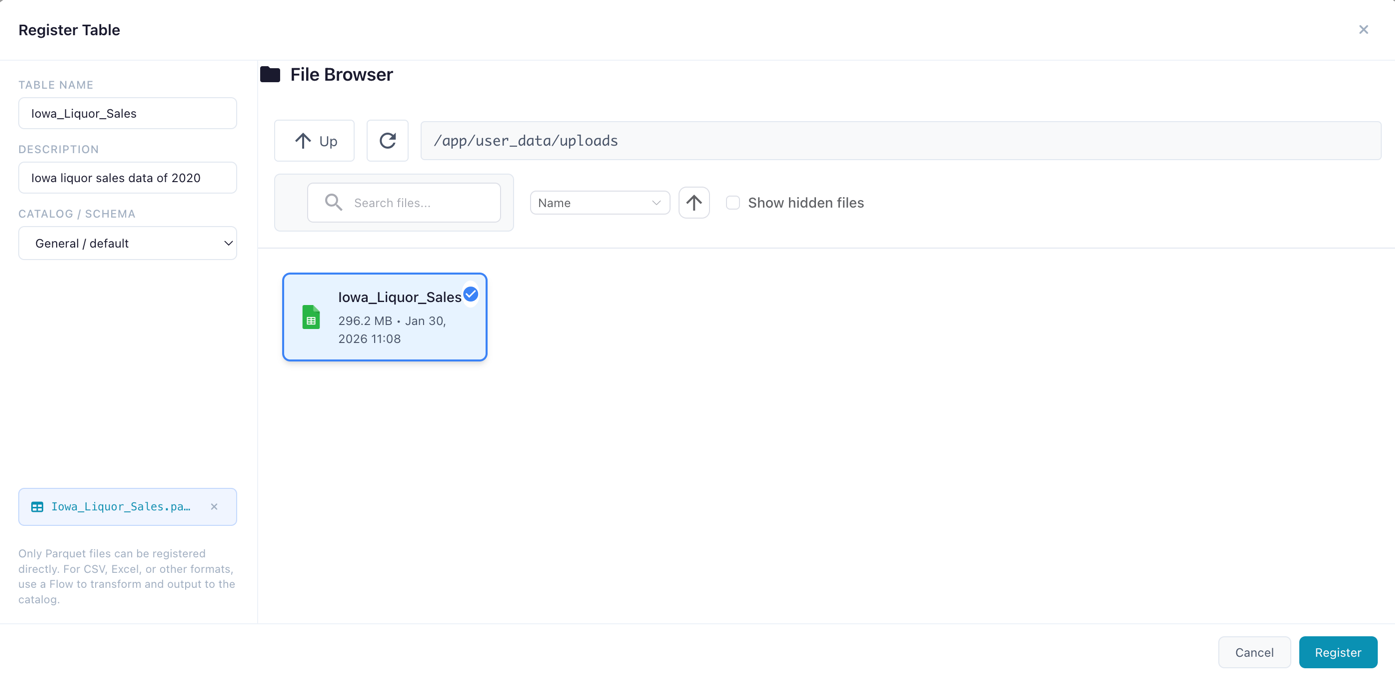
Registering a new catalog table from a data file
Table Detail Panel
Click a table to view:
- Metadata: name, namespace, row count, column count, file size, creation date
- Schema: column names and data types
- Data Preview: scrollable preview of the first 100 rows
- Delete button with confirmation
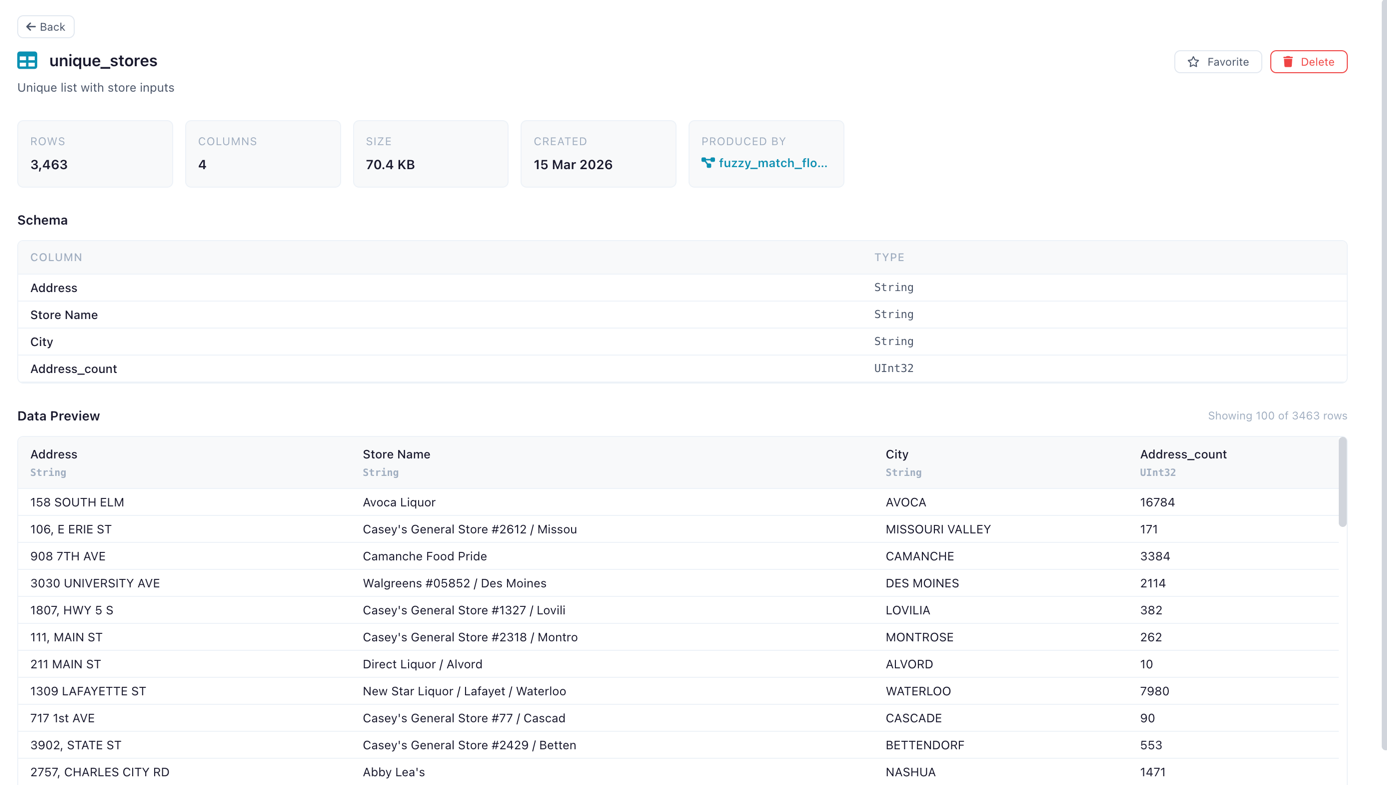
Table detail panel showing schema and data preview
Using Catalog Tables in Flows
Use the Catalog Reader input node to read a catalog table and the Catalog Writer output node to write results back. See Input Nodes and Output Nodes.
Lineage
The catalog tracks which flows produce and consume each table:
- Source: which registered flow and run created the table
- Consumers: which flows read from the table via Catalog Reader nodes
How Storage Works
When you register a table — either by adding it directly in the catalog or by writing to it via a Catalog Writer node in a flow — it is stored as a Parquet file. This ensures consistent, efficient storage with full schema preservation.
Materialization process:
- The source file (CSV, TSV, TXT, Excel, or Parquet) is read by the worker service using Polars
- The data is written as a single Parquet file to the catalog storage directory
- Metadata is extracted from the materialized file: row count, column count, file size, and column schema (names + Polars data types)
- A database record is created linking the table name, namespace, and file path
Supported source format: Parquet (.parquet)
Storage location:
| Environment | Path |
|---|---|
| Desktop / local | ~/.flowfile/catalog_tables/ |
| Docker | /data/user/catalog_tables/ (mapped via FLOWFILE_USER_DATA_DIR) |
File naming: Each Parquet file is named {table_name}_{uuid}.parquet (e.g., sales_data_a3f1b2c4.parquet). The UUID suffix ensures uniqueness even when multiple tables share similar names.
Flat storage
Namespaces (catalogs and schemas) are a logical hierarchy stored in the database — not filesystem directories. All materialized Parquet files live in a single flat directory. Table name uniqueness is enforced per namespace, so two schemas can each have a table called customers without conflict.
Favorites
Favorite a flow (star icon) to bookmark it in the Favorites tab for quick access. Favorites are per-user and can be toggled from the flow detail panel or inline in the tree.
Global Artifacts
Global artifacts are Python objects (ML models, DataFrames, configs) persisted in the catalog and accessible from any flow. They are published from Kernel code using flowfile.publish_global().
Click an artifact in the tree to view its versions, metadata, and producing flow.
Related Documentation
- Kernel Execution — Publishing global artifacts from Python code
- Input Nodes — Catalog Reader node
- Output Nodes — Catalog Writer node
- Building Flows — Creating workflows