Alerts & Notifications
Get a message in Slack, Discord, Microsoft Teams, or any webhook endpoint when a flow run fails, recovers, or succeeds — especially useful for scheduled flows that run while nobody is watching.
Not in Flowfile Lite
Alerts are delivered by the scheduler / run machinery, which requires the full desktop/server build. The browser-only Flowfile Lite edition cannot send notifications.
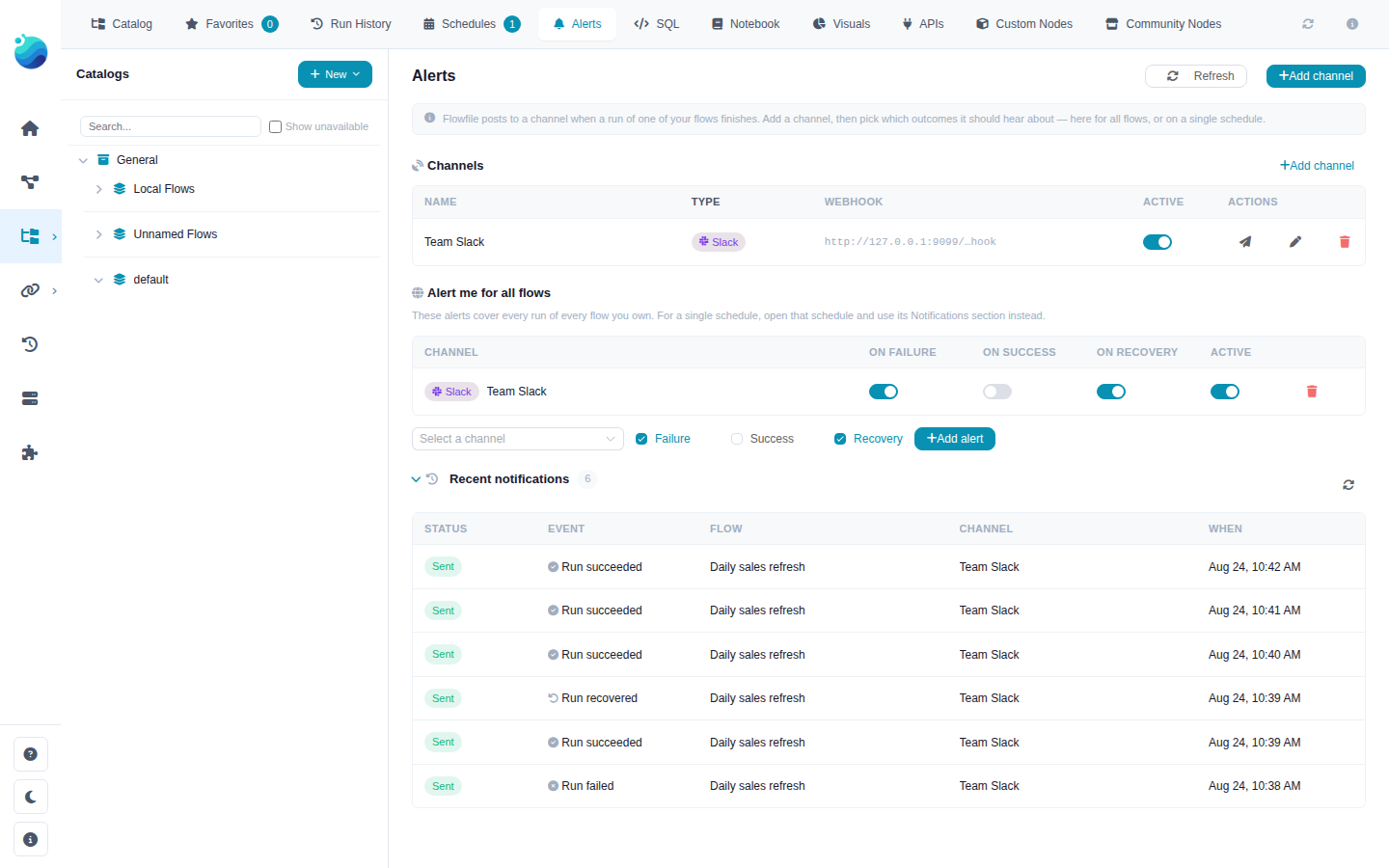
The Alerts tab with a channel, an account-wide alert, and the delivery history
Overview
Alerting is built from two pieces, both managed from the Alerts tab in the Catalog:
| Piece | What it is |
|---|---|
| Channel | A webhook destination — where messages go (a Slack channel, a Teams channel, your own endpoint) |
| Alert (rule) | Which run outcomes are sent to which channel — for one schedule, one flow, or every flow you own |
When a run finishes, Flowfile checks the alerts that cover it and posts a message to each matching channel. Messages contain run metadata only — flow name, schedule, duration, node counts, and the failing nodes' error messages (truncated) — never row data.
The events that can fire:
| Event | When |
|---|---|
| Run failed | The run finished unsuccessfully; the message names the failing node(s) and their errors |
| Run was closed as orphaned | The run's process died without reporting back (crash, OOM, host restart) and the scheduler closed it |
| Run recovered | The run succeeded after the previous run of the same flow had failed |
| Run succeeded | Every successful run (off by default — noisy) |
Runs started from the flow designer canvas are never alerted (you are already watching them), and cancelling a run yourself does not fire a failure alert.
Creating a Channel
- Open the Alerts tab in the Catalog and click Add channel
- Pick the channel type — this controls how the message is formatted
- Paste the webhook URL
- Click Send test to verify a message arrives, then Add channel
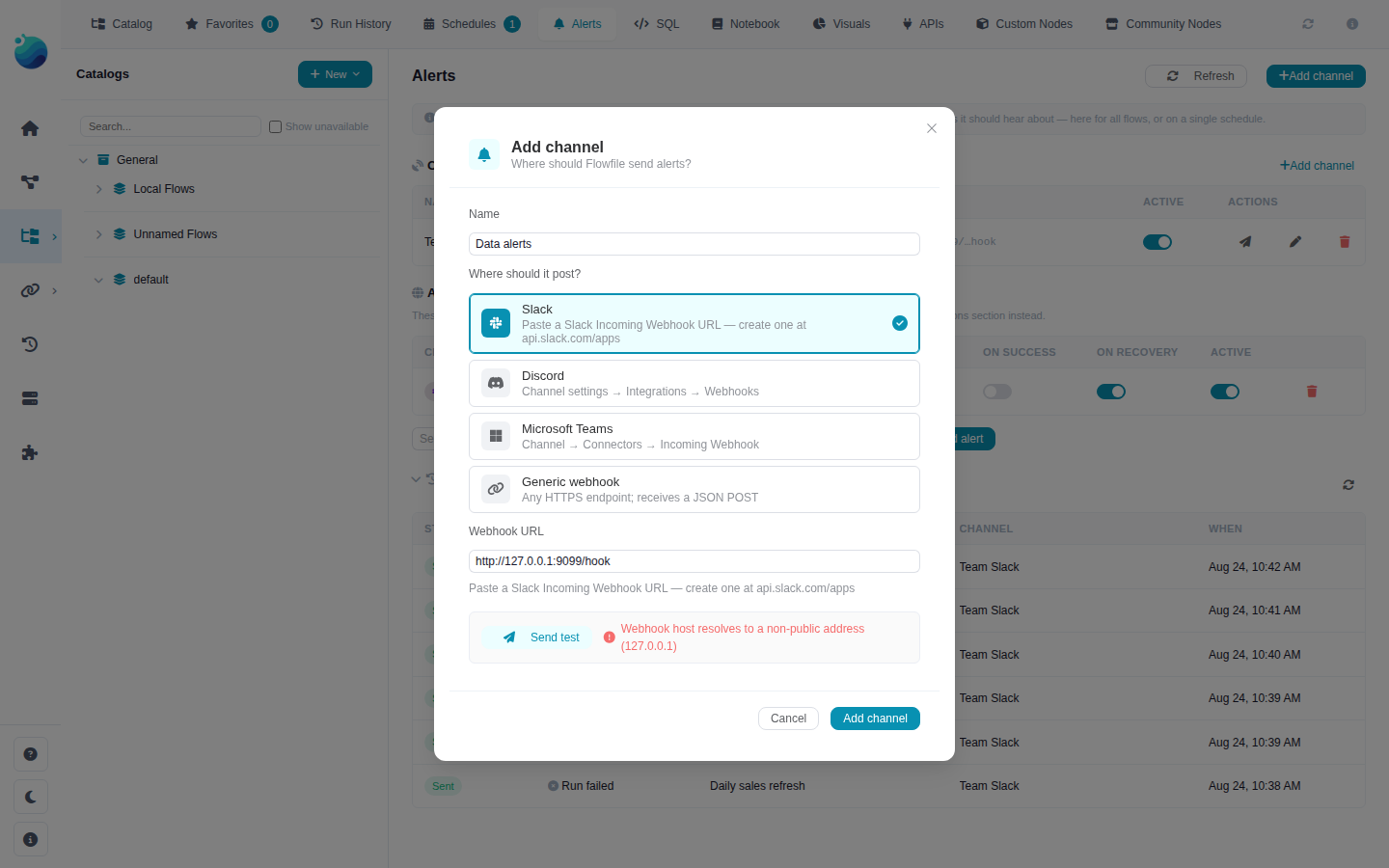
The Add channel dialog with per-provider instructions and a pre-save test
Where to get the webhook URL:
| Type | How to get a URL |
|---|---|
| Slack | Create an app at api.slack.com/apps, enable Incoming Webhooks, add a webhook to a channel |
| Discord | Channel settings → Integrations → Webhooks → New Webhook → Copy Webhook URL |
| Microsoft Teams | Channel → Connectors (or Workflows) → Incoming Webhook |
| Generic webhook | Any HTTPS endpoint you control — it receives a JSON POST with {"event": ..., "data": {...}} |
The URL is a credential
Anyone holding a webhook URL can post into your channel, so Flowfile stores it encrypted (the same $ffsec$ encryption used for secrets) and only ever shows a masked preview after saving. To change a URL, edit the channel and paste a new one.
Adding Alerts
An alert connects a channel to a scope and a set of outcomes. On failure and On recovery are on by default; On success is off (it fires for every successful run).
For one schedule
Open the schedule from the Schedules tab — its detail panel has a Notifications section listing the alerts for that schedule. Add one by picking a channel; toggle outcomes inline at any time.
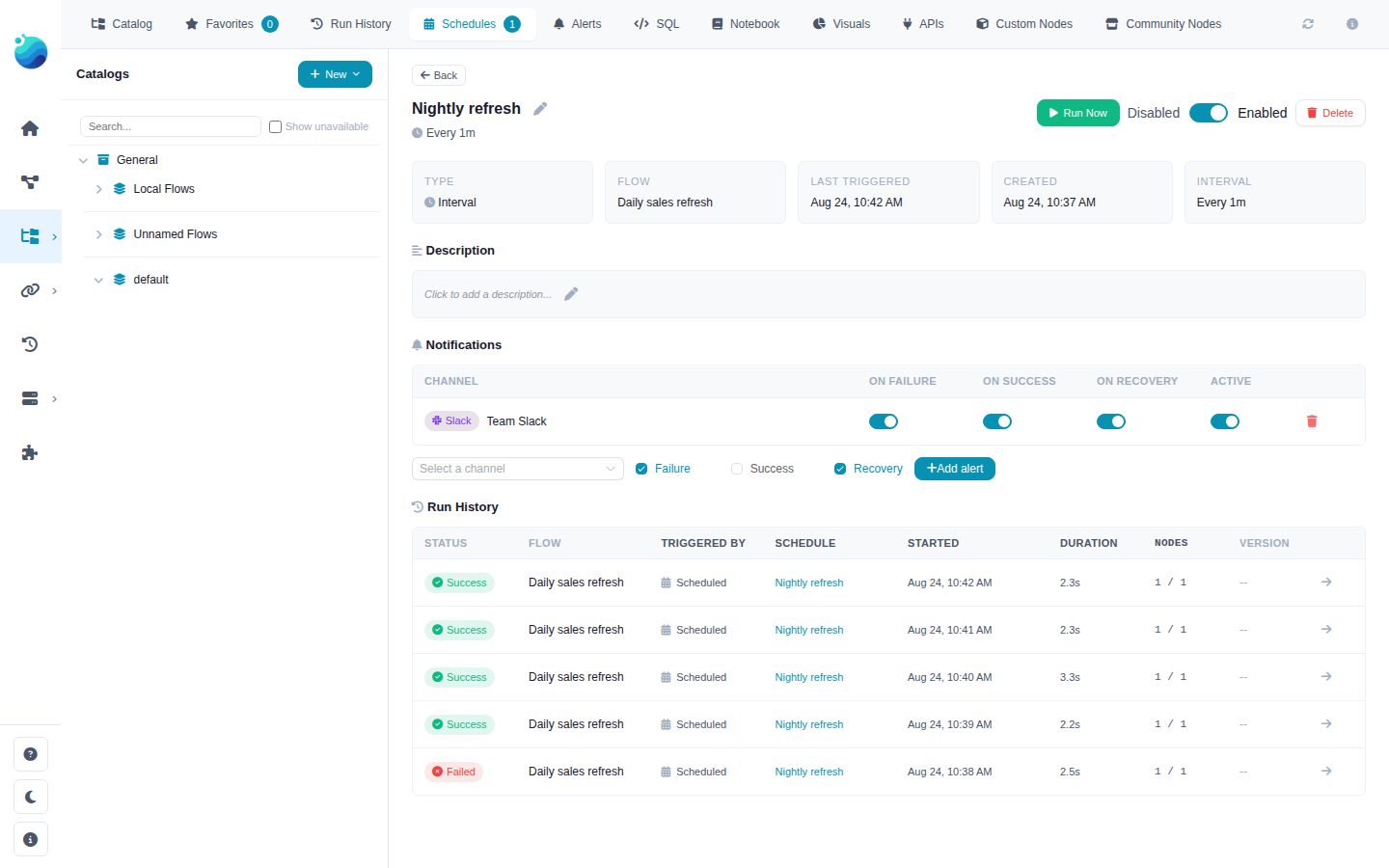
The Notifications section in a schedule's detail panel
You can also tick Notify on failure directly in the create-schedule dialog to set this up in one step.
For one flow
Create the alert with a flow scope via the API (POST /notifications/rules with a registration_id) — it then covers every scheduled/manual run of that flow regardless of which schedule started it.
For everything you own
The Alert me for all flows section on the Alerts tab creates account-wide alerts covering every run of every flow you own. Useful as a safety net alongside more specific per-schedule alerts.
Delivery
- Alerts are sent by the scheduler loop and by the finishing run itself, so they typically arrive within seconds of a run ending. They require Flowfile (or the standalone scheduler) to be running.
- Failed deliveries are retried with increasing backoff (1m → 5m → 15m → 1h, up to 5 attempts) before being marked dead.
- The Recent notifications section on the Alerts tab shows every delivery attempt with its status; a failed delivery shows the error on hover.
- Deleting a channel also removes the alerts pointing at it and its delivery history. Deleting a schedule or flow removes the alerts scoped to it.
Private / internal endpoints
By default Flowfile refuses webhook URLs that resolve to private, loopback, or link-local addresses — a safety guard, since the server makes the request. If your endpoint is on your internal network (e.g. a self-hosted Mattermost), opt in explicitly:
FLOWFILE_NOTIFY_ALLOW_PRIVATE_HOSTS=true
Generic webhook payload
Generic channels receive the raw event as JSON:
{
  "event": "run_failed",
  "data": {
    "event_type": "run_failed",
    "flow_name": "Daily sales refresh",
    "run_id": 42,
    "run_type": "scheduled",
    "schedule_id": 3,
    "schedule_name": "Nightly refresh",
    "success": false,
    "started_at": "2026-08-24T02:00:04",
    "ended_at": "2026-08-24T02:00:07",
    "duration_seconds": 2.5,
    "nodes_completed": 1,
    "number_of_nodes": 4,
    "failed_nodes": [
      {"node_id": 2, "node_name": "read", "error": "[Errno 2] No such file or directory: ..."}
    ],
    "log_path": "/home/user/.flowfile/logs/scheduled_run_42.log",
    "reason": null
  }
}
Related Documentation
- Schedules — Automating flow execution (what the alerts watch)
- Secrets & Encryption — How credentials like webhook URLs are stored
- Catalog — Managing flows, tables, and run history